
by Kristopher Sheehy
Let’s jump straight into this with an engaging 30-second video. After you watch, I encourage you to stay, as I’ll detail the reasons and methods for cleaning up your mixer effectively.
Awesome! In just 30 seconds, you discovered your power to customize your mixer by disabling unwanted channels. You confidently navigated to (Menu > Strips Setup) and eliminated every channel that you found distracting. If you’re not into video, take a look below for a slideshow of screenshots, laid out in sequential order from first to last.
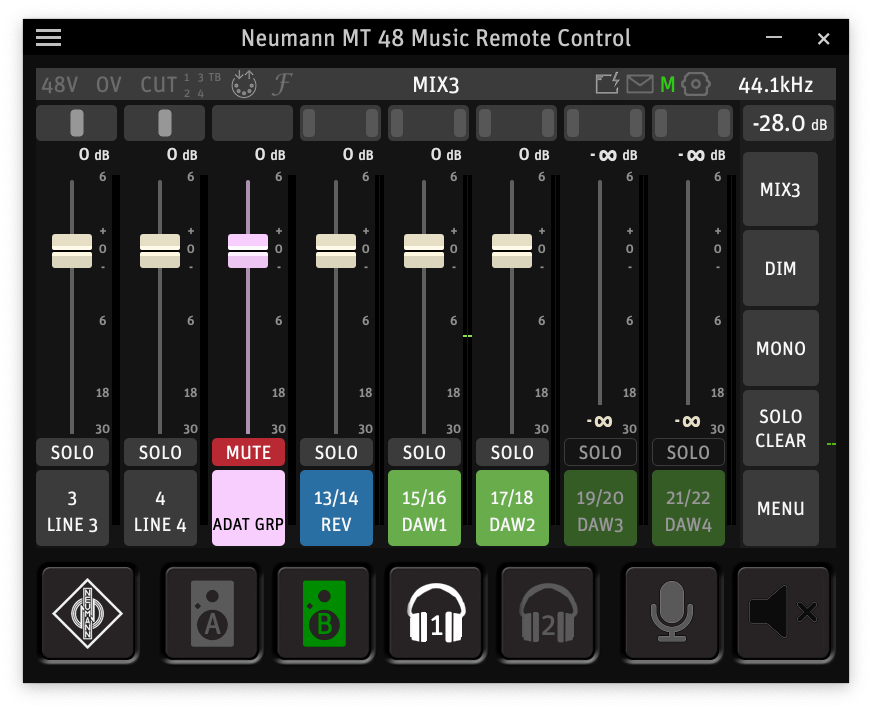
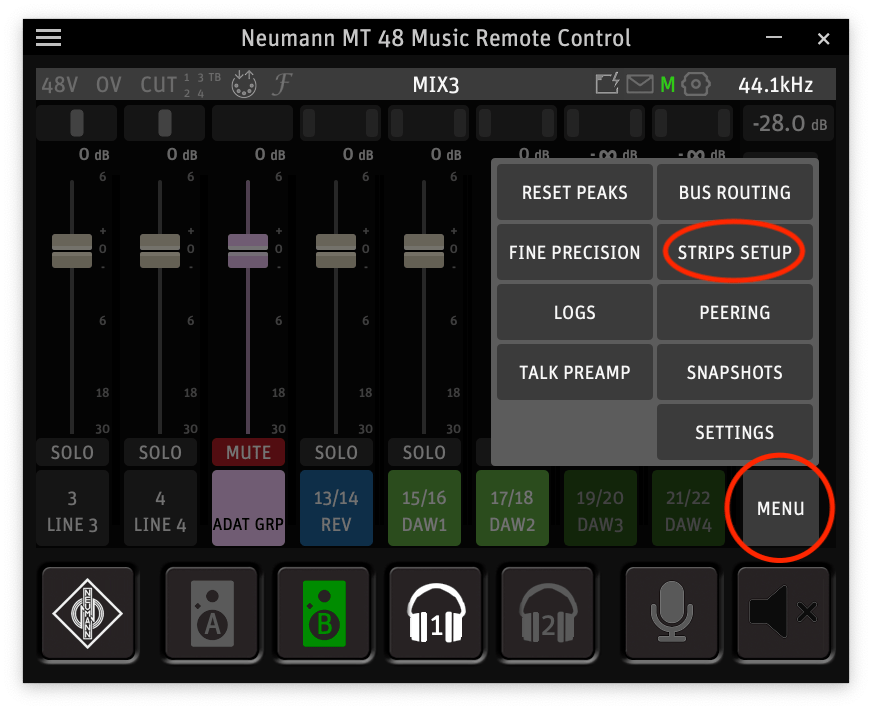

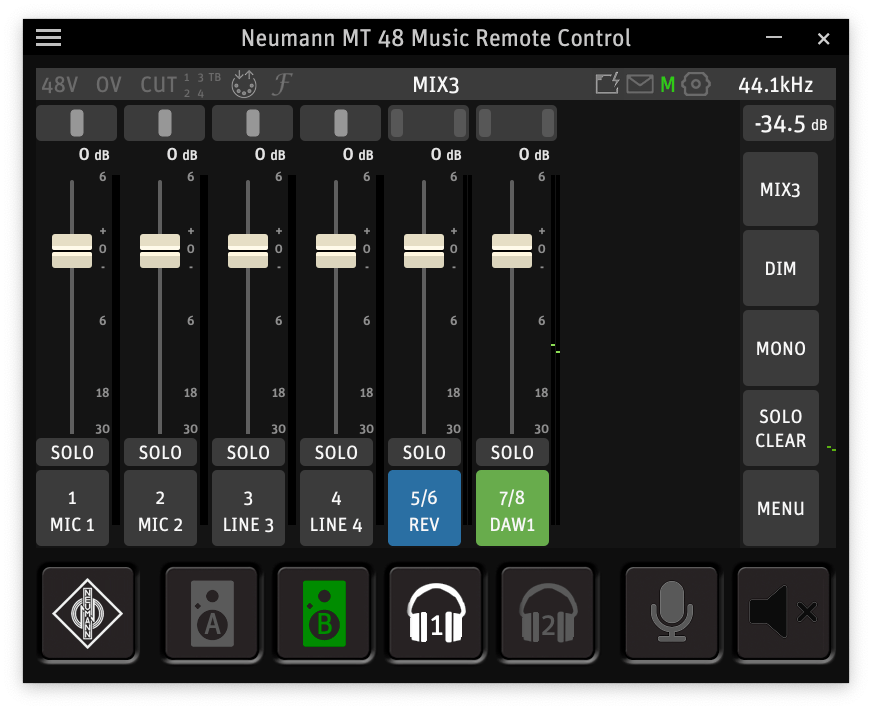
So why should you consider this? If you’ve made it this far, you undoubtedly have your reasons. But for those who haven’t yet seen the benefits, eliminating unnecessary channels will streamline your workflow. It will make everything feel cleaner, faster, and more accessible. When it comes to impressing clients or generating innovative ideas, time is crucial.
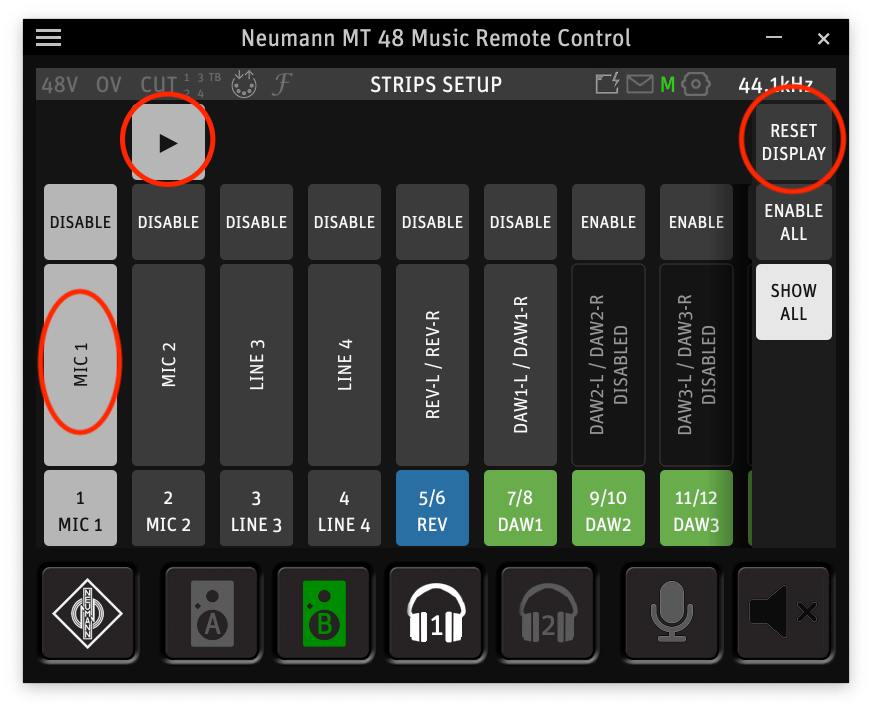
The final tip I want to share with you is the powerful “Enable All” button (see Figure 1). If you’ve disabled features haphazardly and find yourself feeling overwhelmed, don’t worry. Simply head over to (Menu > Strips Setup) and select “Enable All”. This action will restore your mixer to its original state, where every channel is at your fingertips. Consider this your reset button for your mixer customizations.
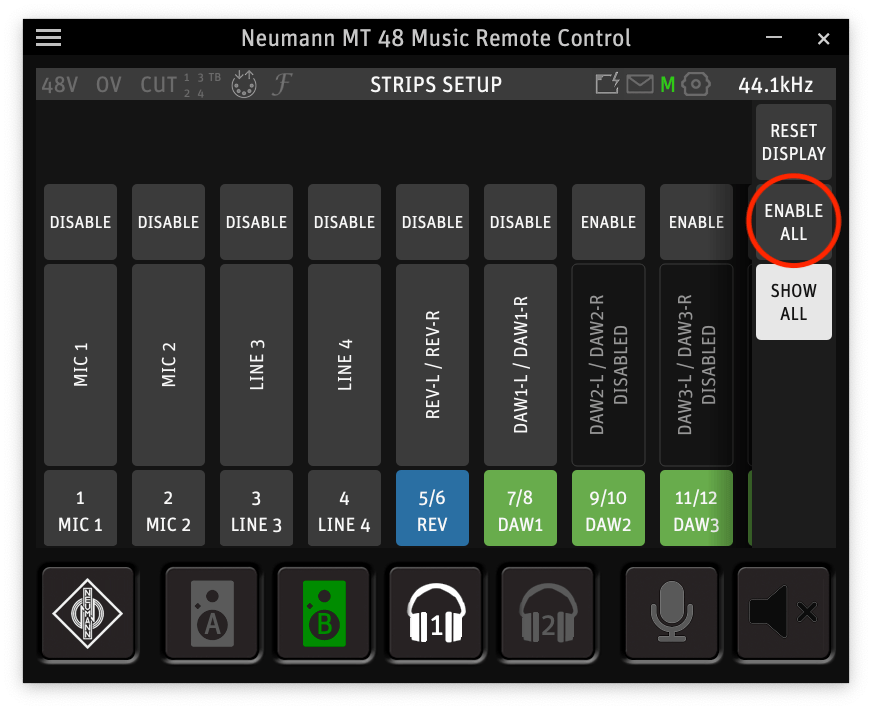
But Kris! There’s an intriguing button above that labeled “Reset Display.” What does it do? Let me clarify: “Reset Display” enables you to reset your mixer arrangement with ease. If you haven’t noticed yet, in the “Strips Setup” menu, you can effortlessly rearrange channels by clicking the center of the channel and then using the provided arrow keys. (see Figure 2)
Happy organizing!
 Creator Audio, Simplified
Leave a comment